
Threat Responses
Configure Threat Responses
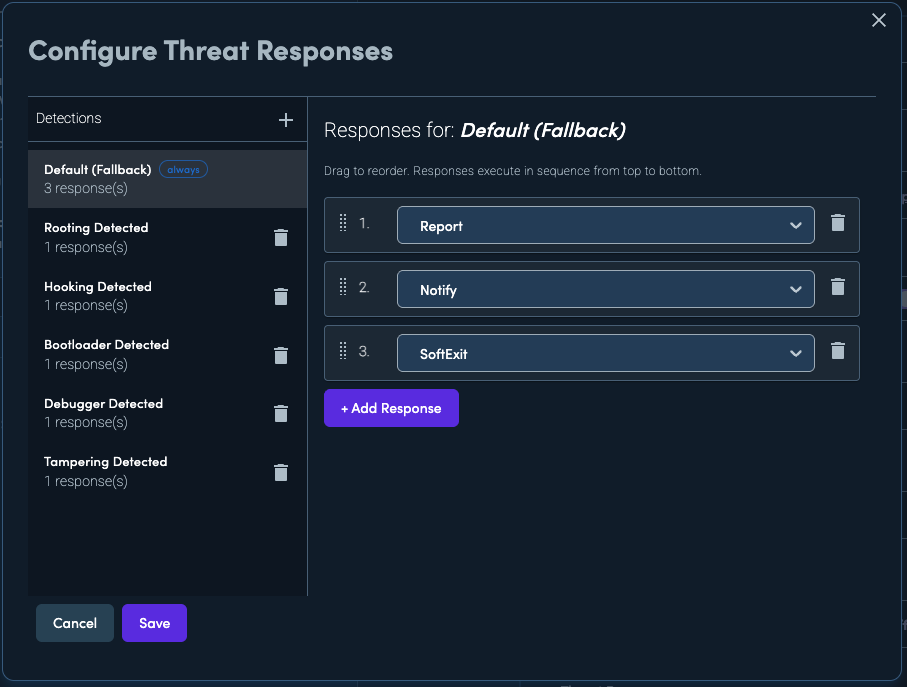
The Configure Threat Responses dialog allows you to define how your protected application reacts when it detects a security threat at runtime. You can create tailored response chains for different detection types, controlling exactly what the application does when a specific threat is identified.
Overview
The dialog is divided into two panels:
- Left panel — Detections: Lists the detection types you have configured. Each entry shows the detection name and the number of responses assigned to it.
- Right panel — Responses: Shows the ordered response chain for the currently selected detection. Responses execute in sequence from top to bottom.
Detections
A detection represents a specific type of threat that the application can identify at runtime. The following detection types are available:
| Detection | Description |
|---|---|
| Default (Fallback) | Used when no specific response chain is configured for a detected threat |
| Rooting Detected | The device has been rooted or jailbroken |
| Hooking Detected | A hooking framework (e.g. Frida, Xposed) is active |
| Bootloader Detected | The device bootloader is unlocked |
| Debugger Detected | A debugger is attached to the application |
| Tampering Detected | The application binary or application package has been modified |
| Emulator Detected | The application is running on an emulator |
| Overlay Detected | A screen overlay is active over the application |
| Side-Loading Detected | The application was installed from an unofficial source |
| Hostname Whitelist Violation | A network connection was made to a non-whitelisted host |
| Installer Mismatch | The application was not installed by the expected installer |
| MITM Detected | A man-in-the-middle attack is detected on network traffic |
| VPN Detected | A VPN connection is active on the device |
| Proxy Detected | Network traffic is being routed through a proxy |
| DNS Consensus | A DNS consensus violation was detected |
| Screenshot Detected | A screenshot of the application was taken |
| Screen Recording Detected | The application screen is being recorded |
The Default (Fallback) detection
The Default (Fallback) detection is always present and cannot be removed. It acts as a catch-all: any detection type that does not have its own explicit response chain will use the Default responses instead.
Adding and removing detections
- Click the + button in the Detections header to add a new detection type. Only detection types not already in the list are available.
- Click the 🗑 (delete) icon next to a detection to remove it. The Default detection cannot be removed.
Responses
Each detection has an ordered response chain. When the application detects a threat, it executes the responses in sequence from top to bottom (response 1 first, then response 2, etc.).
Available response types
| Response | Description | Parameters |
|---|---|---|
| Report | Report the detection event to the Verimatrix backend | None |
| Notify | Notify the host application via a callback | None |
| SoftExit | Gracefully terminate the application | None |
| HardExit | Immediately force-terminate the application | None |
| Popup | Display a message to the user | Message (text to display) |
| OpenUrl | Open a URL in the device browser | URL (must be a valid URI) |
| Sleep | Pause execution for a specified duration | Duration (1000–10000 ms) |
| NOP | No operation — do nothing | None |
Managing responses
- Add: Click + Add Response to append a new response to the end of the chain.
- Remove: Click the 🗑 (delete) icon to the right of a response to remove it.
- Reorder: Drag a response by its handle (the dotted grip icon on the left) to change its position in the chain.
- Change type: Use the dropdown to change a response to a different type.
Validation
The editor validates response parameters in real time:
- Sleep: Duration must be between 1000 and 10000 milliseconds.
- OpenUrl: The URL must be a valid URI (e.g.
https://example.com). - Popup: The message field cannot be empty.
If any response has a validation error, the field is highlighted in red and the Save button is disabled until the error is corrected.
Saving and cancelling
- Click Save to apply your configuration. The Save button is disabled if there are any validation errors.
- Click Cancel to discard your changes. If you have unsaved modifications, a confirmation dialog will ask whether you want to leave without saving.
Updated 27 days ago