
Apple FairPlay Streaming Certificate Setup Guide
This article explains how to create and register an Apple FairPlay Streaming (FPS) certificate and prepare the required keys for a DRM license service. For more information on Apple Fairplay Streaming please visit Apple’s developer page.
To set up your FPS streaming certificate:
- Request access to FairPlay Streaming
- Create a private key and CSR with OpenSSL
- Generate the FairPlay certificate in Apple Developer
Prerequisites
Please note that only content owners or licensees can obtain the Apple certificates. Requests for third-party accounts acting on behalf of content owners or licensees will not be approved by Apple.
An Apple Developer account is required to be able to start the process. You can obtain one at Apple's program enrollment..
To enable FairPlay protection for HLS playback, you must request access from Apple and generate the following items:
- Application Secret Key (ASK)
- Private key password
- FairPlay certificate (.cer or .der)
- Encrypted private key (.pem)
1. Request access to FairPlay Streaming
Sign in to your Apple Developer account and click Request Deployment Package at the bottom of the Fairplay Streaming website.
Log in with your Apple developer account and complete the organization and service details requested in the form.
After submitting the request form for the Deployment Package, Apple will review your application. Once approved, you will receive a package that includes the FPS Credential Creation Guide.
Please note that the approval process is not immediate and there is no expected response time given by Apple.
Important: Please provide as much information as possible about the owned or licensed content, the company, and the stream rights when filling the required information. Failing to do so might result in rejection.
The image below provides a sample of the details you are expected to supply in Apple’s submission form.
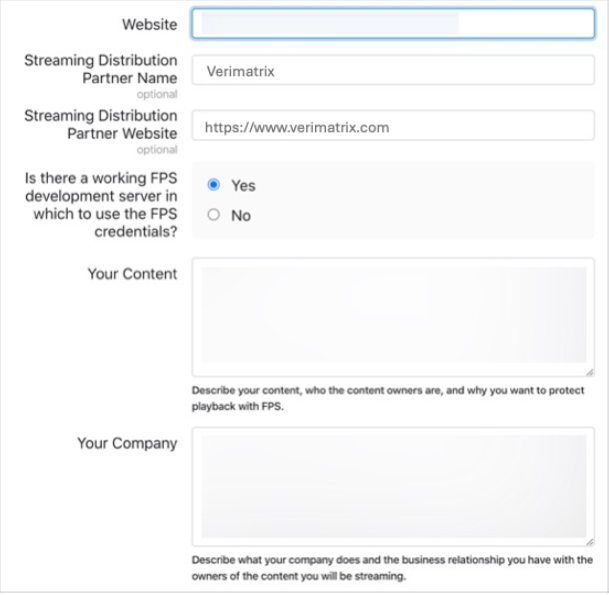
When requested if you have implemented and tested Key Server Module (KSM), answer: "I am using a 3rd party DRM service, and the company has already built and tested the Key Server Module".
2. Create a private key and CSR with OpenSSL
It is required to install OpenSSL in the environment where this process is performed.
To obtain a private key privatekey.pem file and a certificate signing request certreq.csr file follow these steps:
- Open the OpenSSL command-line tool.
- Run the following command:
openssl genrsa -aes256 -out privatekey.pem 1024
- This will generate the privatekey.pem file
- Create a password for the private key. The password should be shorter than 32 characters without special characters.
- Run the following command:
- Please update in the command below the SubjectName, OrganizationalUnit, Organization, and CountryCode to suit your organization’s information.
openssl req -new -sha1 -key privatekey.pem -out certreq.csr -subj "/CN=SubjectName/OU=OrganizationalUnit/O=Organization/C=CountryCode"
- Enter the password created in step 3.
3. Generate the FairPlay certificate in Apple Developer
Log into the Apple Developer Portal and click on Certificates, IDs & Profiles on the Program Resources Menu below.
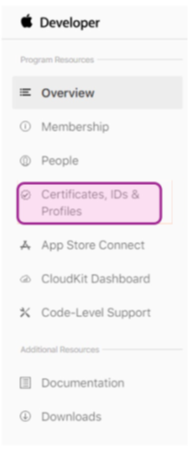
Follow these steps:
-
Add a new certificate by selecting Certificates and clicking the Add button.
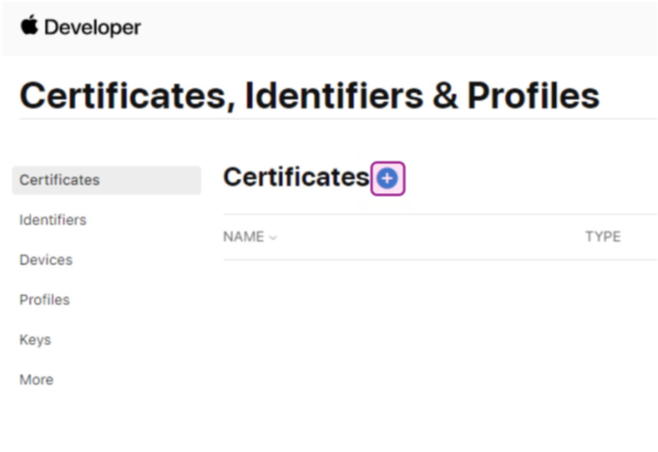
-
The Create a New Certificate Section will open, select Fairplay Streaming Certificate and press Continue.
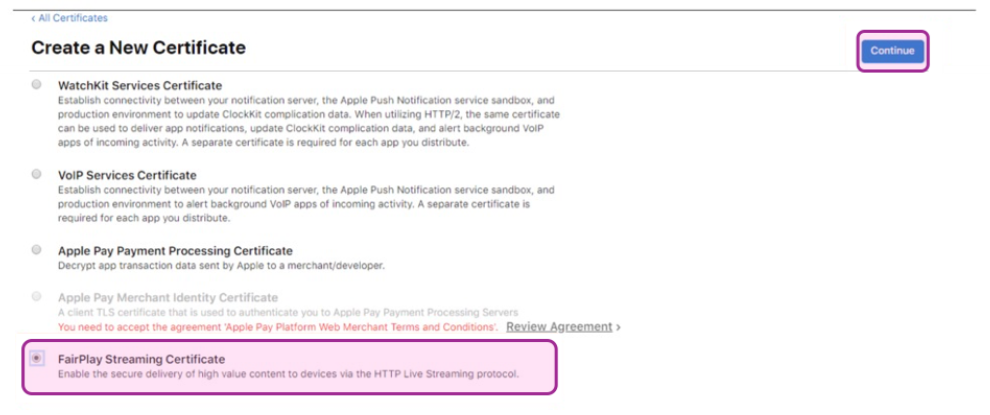
-
Click Choose File.
-
Select the certreq.csr file previously created with OpenSSL and press Continue.
-
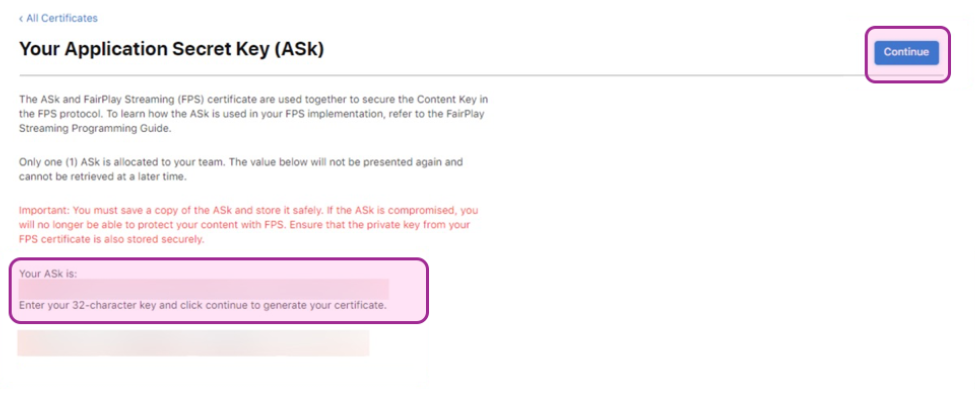
Apple will provide the Application Secret Key (ASK). Store it safely. In case the ASK is compromised, you won’t be able to protect content with Fairplay anymore.
-
Copy and Paste the ASK in the space given in the form below and press Continue.
-
When the pop-up appears to confirm that you have saved your ASK press the Generate button.
-
Select Certificates in the left menu and check that obtained FairPlay Streaming Certificate is in the list.
-
Click on your Certificate.
-
Press the Download button to save the FPS certificate file: fairplay.cer.
Updated 15 days ago